
Add Your Virgin Money Giving Donation Link
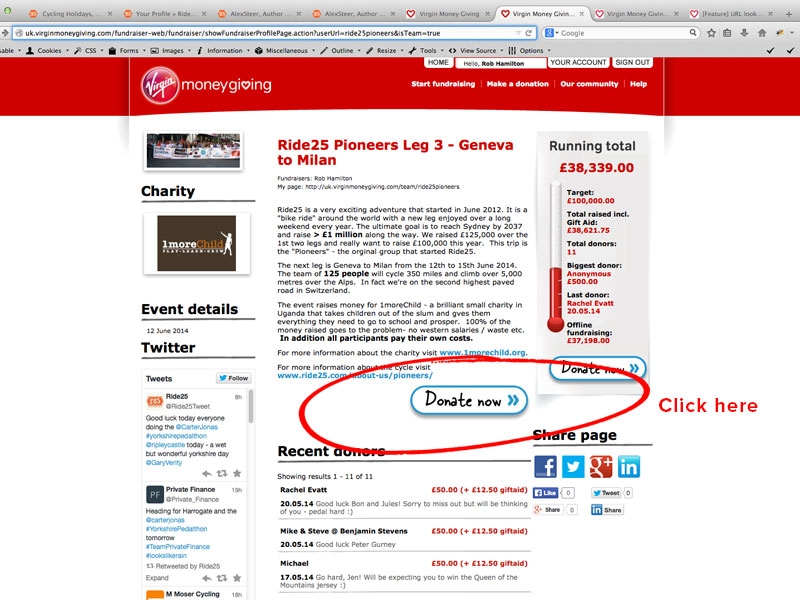
- Navigate to your Virgin Money Giving fundraising page.
- Click the ‘Donate Now’ button (this will take you to the ‘Make a donation’ page).
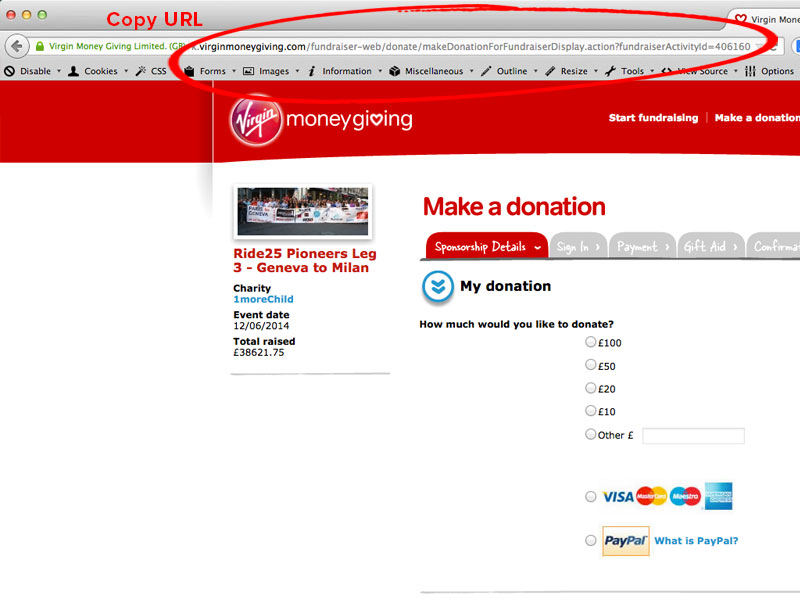
- Place your mouse cursor in the address bar (left mouse click).
- Select the whole URL (PC: ctrl + a / Mac: cmd + a).
- Copy the selected URL (PC: ctrl + c / Mac: cmd + c).
- Paste the URL into the ‘Donation Link’ field on your Ride25 profile
(PC: ctrl + v / Mac: cmd + v).
Add Your Strava Personal Profile URL
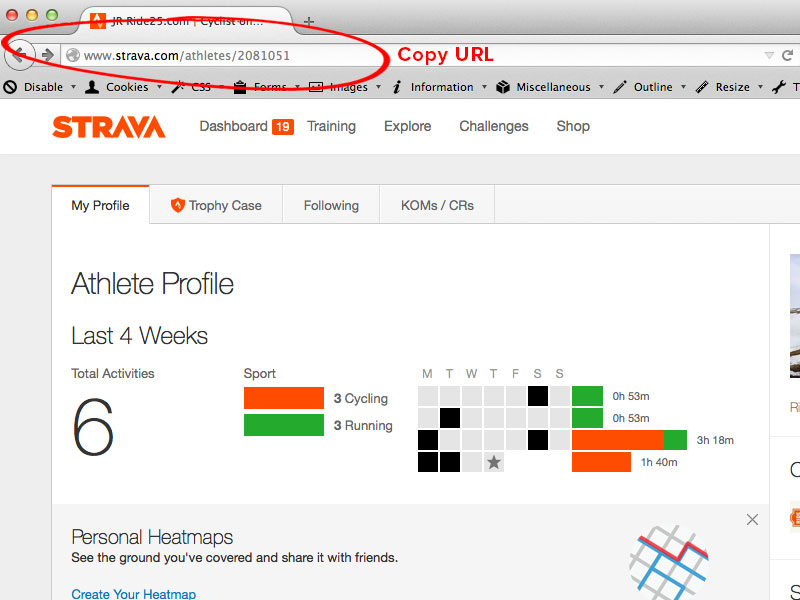
- Login to your STRAVA account.
- Move your mouse cursor to the top-right of the page.
- Hover over your profile avatar picture.
- Select/click the ‘My Profile’ link from the dropdown menu below avatar (this will take you to your profile page).
- Place your mouse cursor in the browser address bar (left mouse click).
- Select the whole URL (PC: ctrl + a / Mac: cmd + a).
- Copy the selected URL (PC: ctrl + c / Mac: cmd + c).
- Paste the URL into your ‘Personal URL’ field on your Ride25 profile (PC: ctrl + v / Mac: cmd + v).
Add Your Strava Personal Activity Widget / Summary Widget
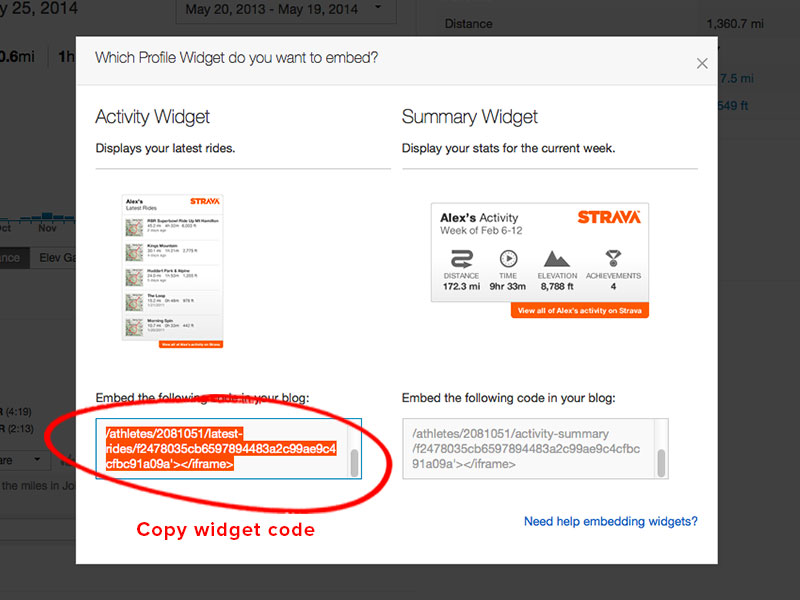
- Scroll/Move down the Strava profile page.
- Click the ‘Share Your Rides’ button (a pop-up page will now appear).
- Choose the widget you want to add to your Ride25 profile – Activity or Summary.
- Click the text area below the widget’s image preview to select the code.
- Copy the selected widget code (PC: ctrl + c / Mac: cmd + c).
- Paste the widget code into the corresponding ‘Personal Activity Widget’ or ‘Personal Summary Widget’ field on your Ride25 profile (PC: ctrl + v / Mac: cmd + v).
Add Your Strava Club profile URL
- Login to your STRAVA account.
- Move your mouse cursor to the top-right of the screen.
- Hover over your profile avatar picture.
- Select ‘My Profile’ from the avatar’s dropdown menu (this will take you to your profile page).
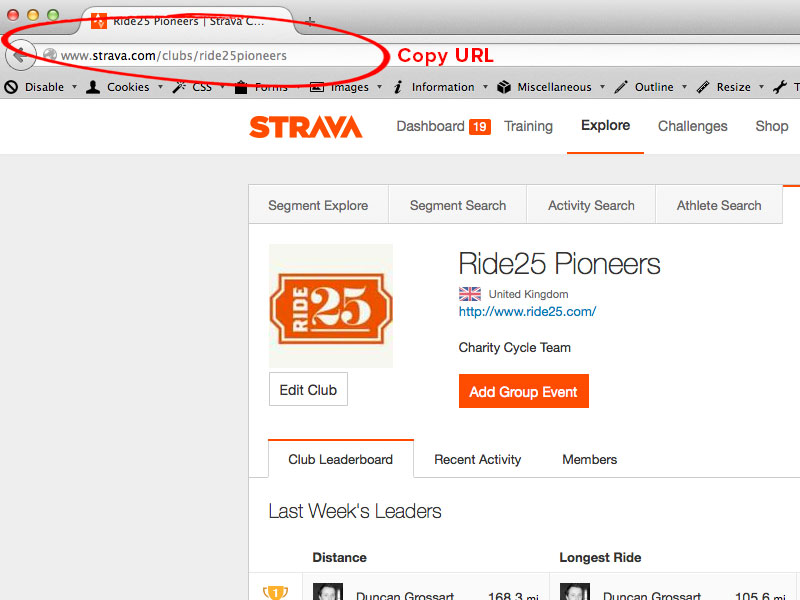
- Click the club avatar image in the ‘Clubs’ section below your main profile image (this will take you to your selected club’s profile page).
- Place you mouse cursor in the address bar (left mouse click).
- Select the whole URL (PC: ctrl + a / Mac: cmd + a).
- Copy the selected URL (PC: ctrl + c / Mac: cmd + c).
- Paste the URL into the ‘Club URL’ field on your Ride25 profile (PC: ctrl + v / Mac: cmd + v).
Add Your Strava Club Activity Widget / Summary Widget
- Scroll/Move down your club profile page.
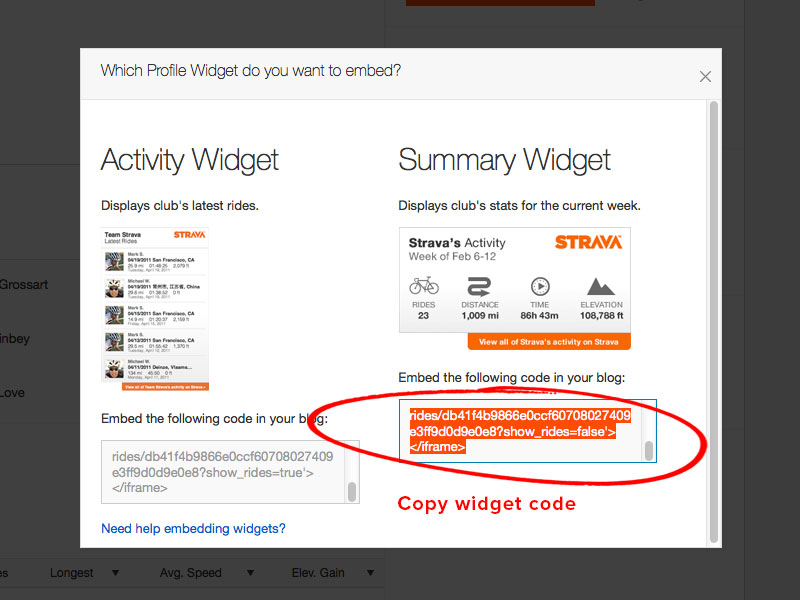
- Click the ‘Share Your Rides’ button (a pop-up page will now appear).
- Choose the widget you want to add to your Ride25 profile – Activity or Summary.
- Click the text area below the widget image preview to select the code.
- Copy the selected widget code (PC: ctrl + c / Mac: cmd + c).
- Paste the widget code into the corresponding ‘Club Activity Widget’ or ‘Club Summary Widget’ field on your Ride25 profile (PC: ctrl + v / Mac: cmd + v).